
How to Verify Your Computer's Operating System
The operating system of your computer plays a crucial role because it helps you make informed decisions about your device. Understanding the operating system gives you insight into which software is compatible with your computer and ensures that all your applications run smoothly.
Another key responsibility of the operating system is to ensure that all hardware components, such as printers, disc drives, and applications, function correctly.
Operating systems are primarily categorised by the type of processor: 32-bit and 64-bit. Before delving into the steps to determine your operating system, it’s important to understand the differences between 32-bit and 64-bit processors.
The key distinctions between 32-bit and 64-bit processors are their memory handling capacity and security features. A 64-bit processor supports significantly more memory, capable of handling up to 16GB of RAM, whereas a 32-bit processor is limited to 4GB. Additionally, 64-bit processors come with enhanced security features, making them more secure compared to their 32-bit counterparts. As a result, many users are upgrading to 64-bit systems for better performance and protection.
Why Is It Important to Know Your Operating System?
Being familiar with your computer’s operating system and specifications can be helpful not only for ensuring compatibility with software and hardware, but also in troubleshooting issues. Knowing this information can make it easier to solve problems that arise.
Additionally, knowing your operating system details is vital for installing updates, which often improve performance and security. It also enables you to communicate effectively with technical support teams, as you’ll be able to provide precise information about your device. For anyone managing or upgrading their system, this understanding is a fundamental skill that can save time and effort.
How to Identify Your Operating System on Windows 11?
Follow these simple steps to determine whether you have a 32-bit or 64-bit processor:
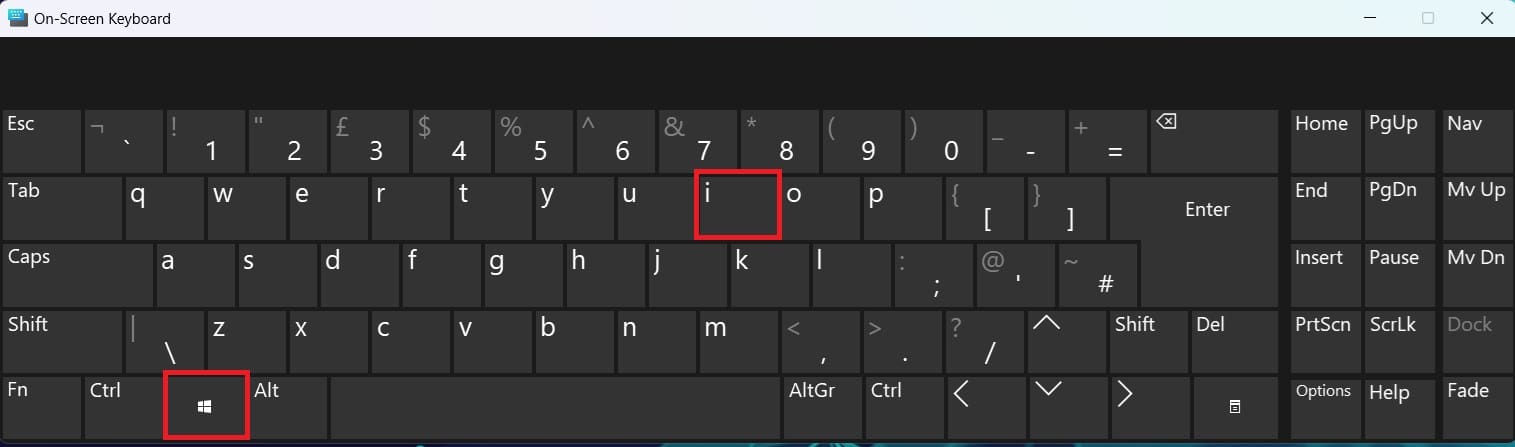
Open Settings:
Press Windows Key + I to open the Settings app.Go to System Information:
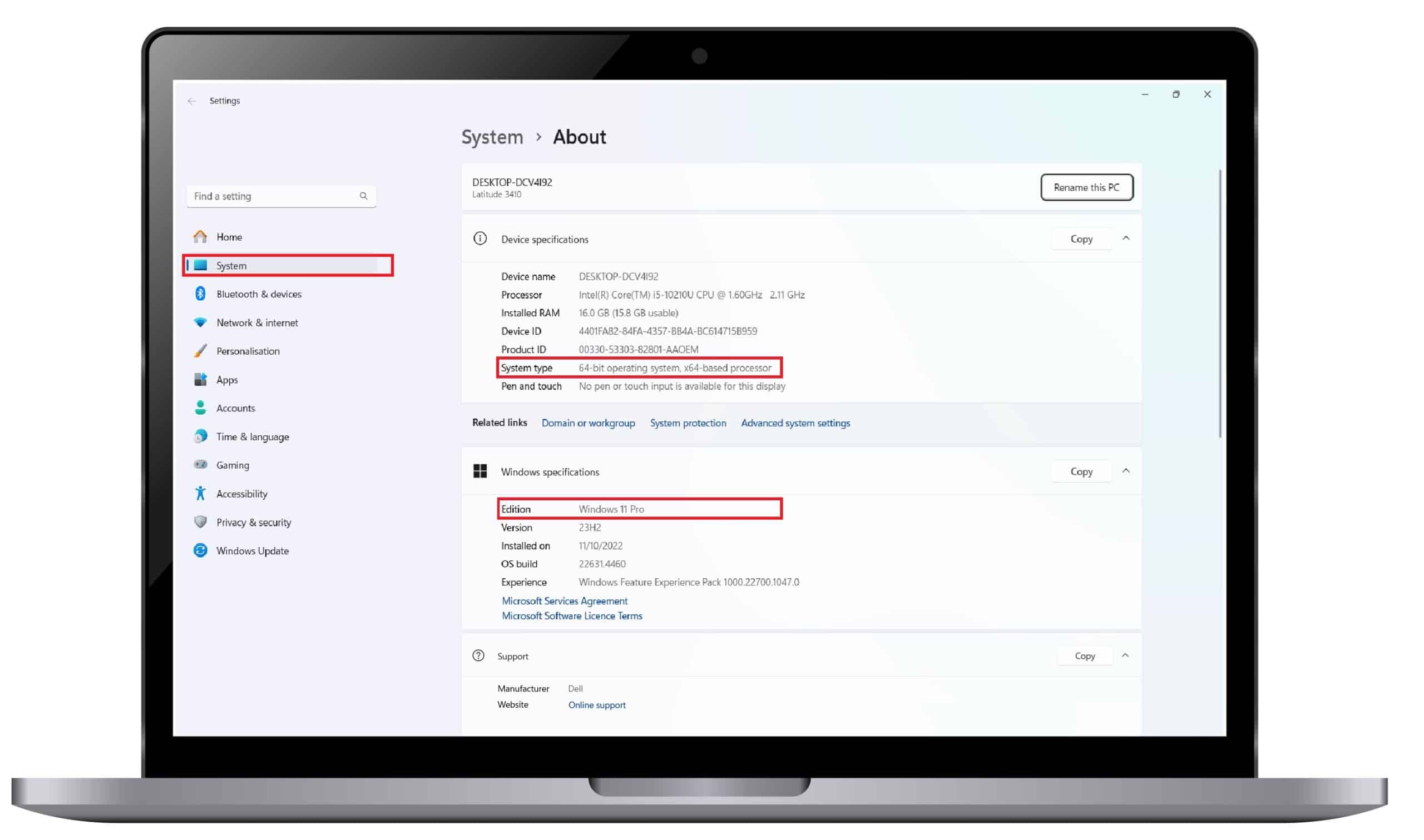
Click on System in the left-hand menu.Check About Your PC:
Scroll down and select About.Find OS Details:
Under the “Windows specifications” section, you’ll see the edition (e.g., Windows 11 Home or Pro), version, and build number of your operating system.
Alternatively:
- Right-click on This PC or My Computer on the desktop or in File Explorer, then select Properties. The OS details will appear under “Windows specifications.”
Step 1:
Step 2:
How to Check the Operating System in Windows 10 ?
Follow these simple steps to determine whether you have a 32-bit or 64-bit processor:
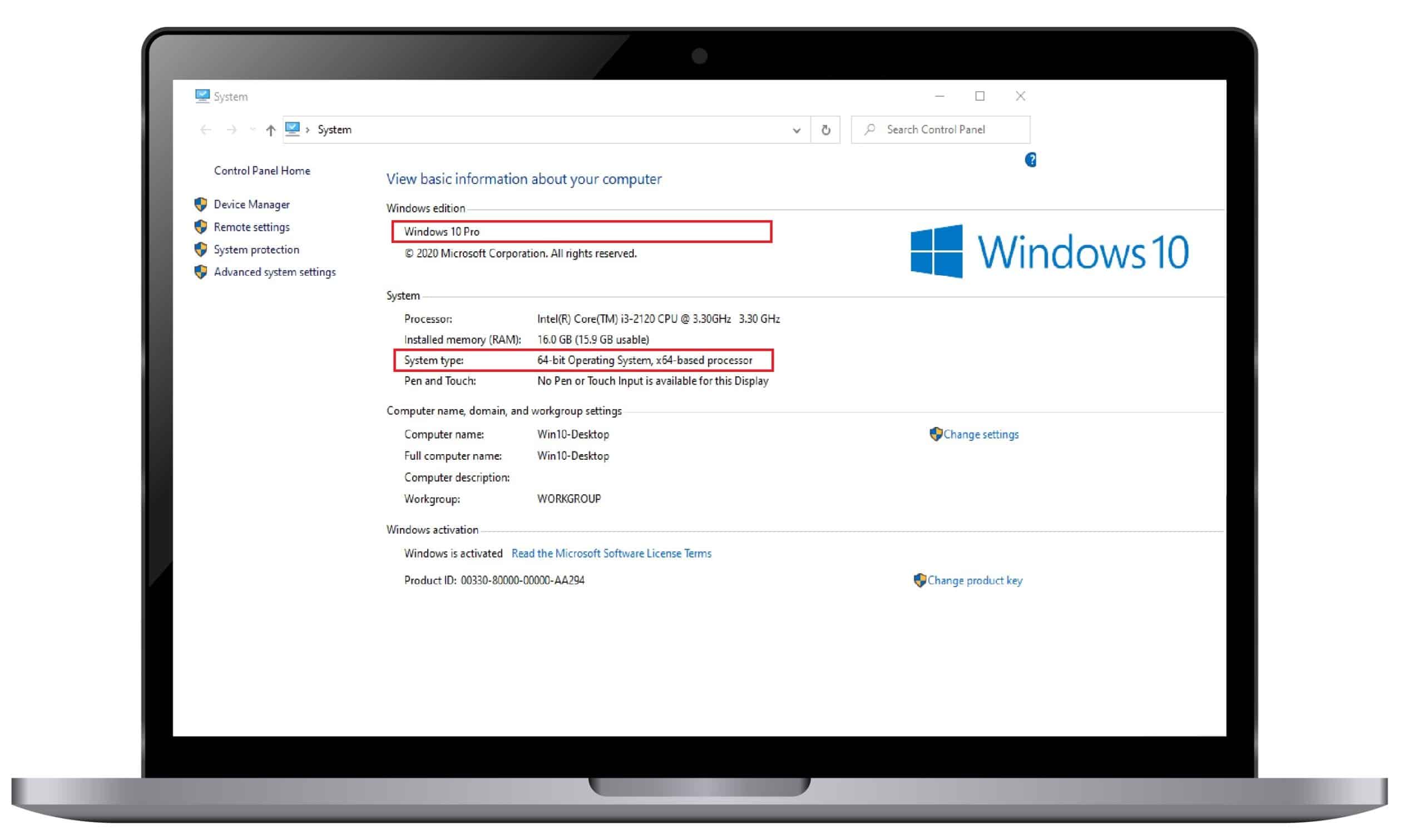
- Press Windows + I to open Settings.
- Select System.
- Click About.
- Under System Type, you’ll be able to see whether your system is 32-bit or 64-bit, and it will also show if your processor supports 64-bit.
Step 1:
Step 2:
How to Verify in Windows 8 ?
Control Panel
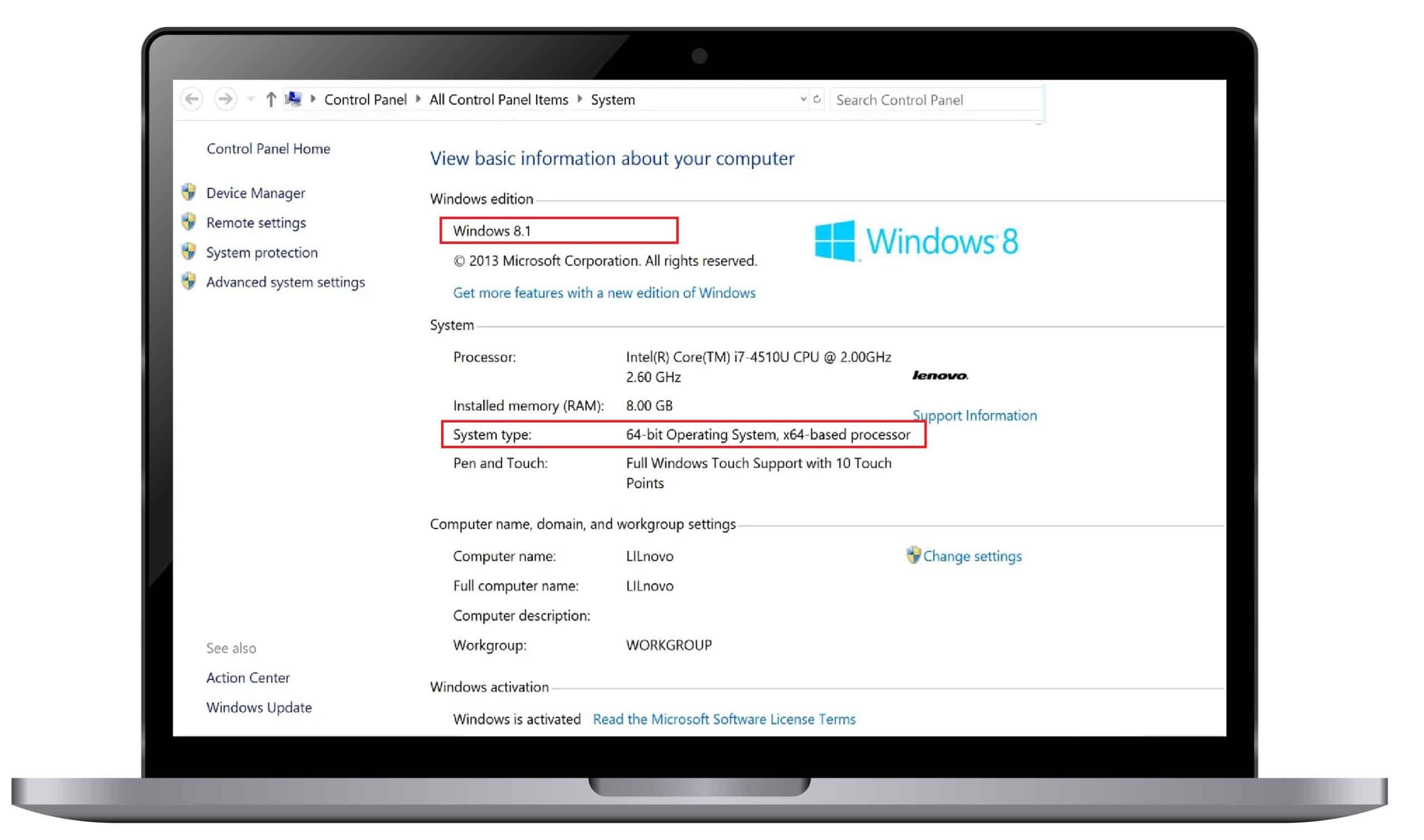
- Open the Search bar and type “System.”
- Click on Settings.
- If in the System Field it says “64-bit operating system“, it means you have a 64-bit version of Windows 8. If it says “32-bit operating system,” then you are using a 32-bit Windows 8 version.
System Information
- Open Search, type “system information,” and click on the result.
- In the System Summary, look for System Type, which will display either “x-64 based PC” or “x-32 based PC.”
Step 1:
Step 2:
How to Verify Mac Device?
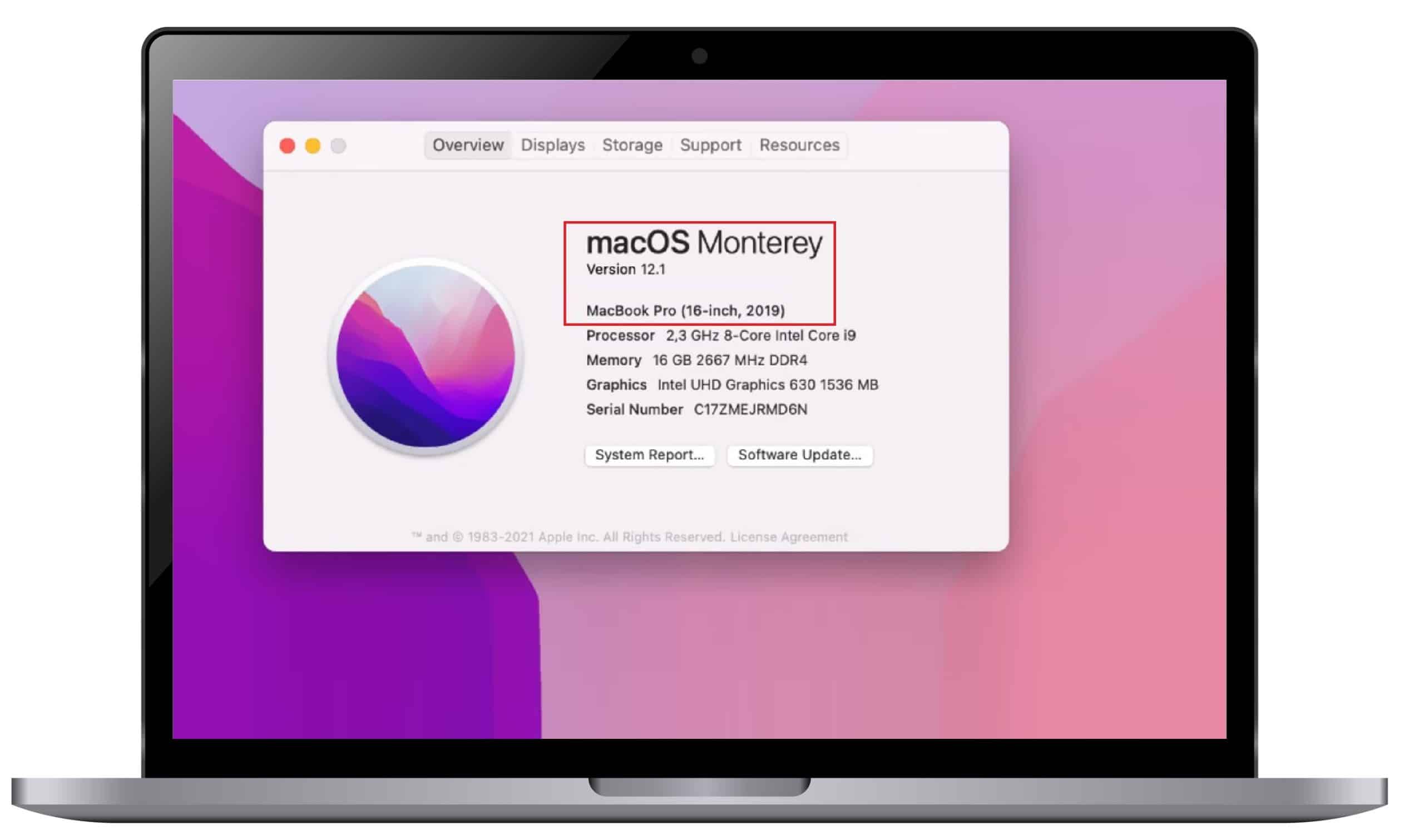
1. macOS (All Versions):
- Click the Apple menu in the upper-left corner of the screen.
- Select About This Mac.
- Under the Overview tab, you’ll see information about your macOS version and whether it is a 64-bit system.
Note: All modern Macs (running macOS 10.8 or later) are 64-bit. However, older versions may be 32-bit, and macOS will indicate this in the System Report section under Software.
Knowing the operating system on your computer is crucial for installing software, troubleshooting, and making sure your system is up to date with the latest features and security.
Step 1:
Why Topkeystore.com is the Right Place to Buy?
Topkeystore.com is your go-to destination for genuine, licensed Microsoft software at the best prices. As a trusted Microsoft Certified Partner, we offer a wide range of products, including the latest versions of Windows, Microsoft Office, and other essential software. Our goal is to make technology accessible and affordable for everyone, whether you’re an individual, small business, or large enterprise. With us, you can be sure that you’re getting authentic, high-quality software that’s always up to date and fully supported by Microsoft.
We are committed to providing our customers with the best possible experience. From helping you select the right software for your needs to offering clear and easy installation instructions, Topkeystore.com ensures that your purchase is seamless and hassle-free. Our team of experts is always on hand to provide 24/7 customer support, answering any questions and assisting with any issues you may encounter. Whether it’s compatibility concerns or installation problems, we’re here to guide you every step of the way.
What sets Topkeystore.com apart is our focus on value. Not only do we offer competitive prices, but we also make sure you get more for your money with ongoing promotions, discounts, and exceptional customer service. With our strong partnership with Microsoft, you can trust that all of our software is legitimate and fully supported. When you shop with us, you’re not just buying software; you’re gaining a reliable partner who cares about helping you get the most from your technology.